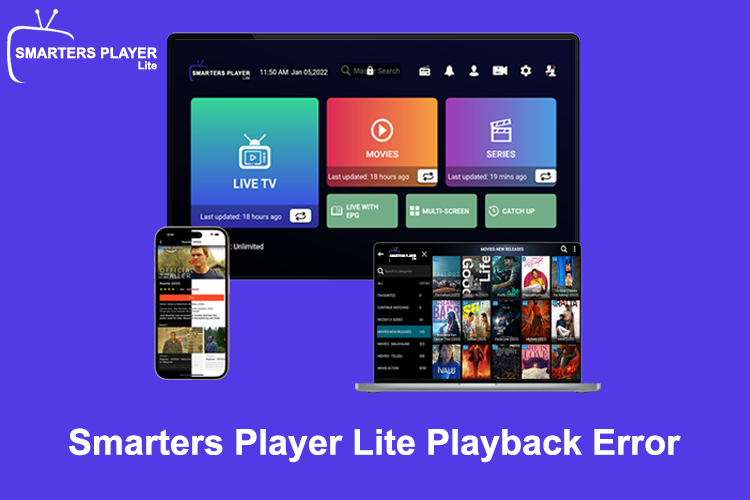

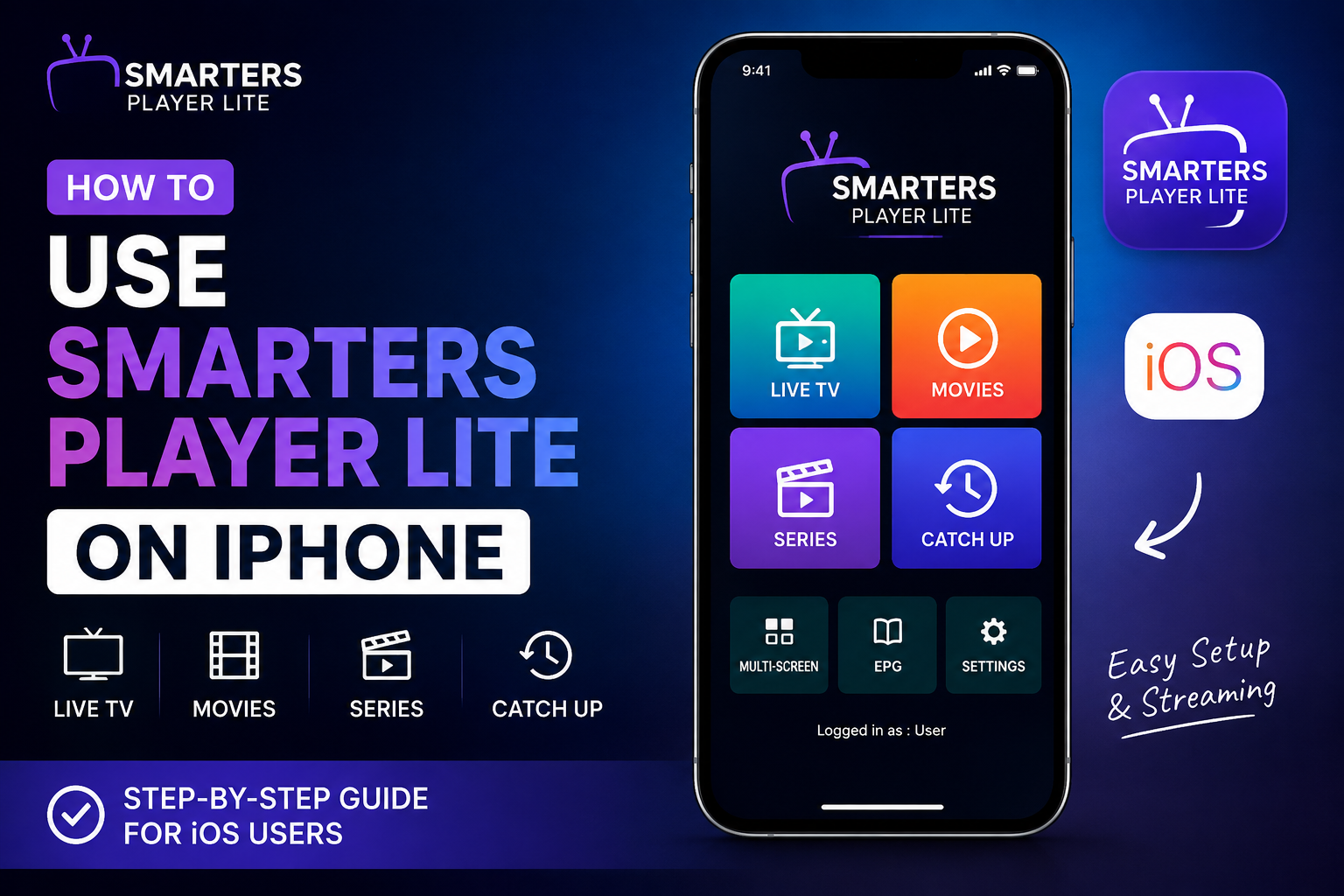
Smarters Player Lite is a popular video player app on iOS used to stream live TV, movies, and TV series by connecting your IPTV service subscription.
Important Note: Smarters Player Lite is strictly a media player—it does not contain or provide any channels or content. You must have an active subscription and login credentials from a third-party service provider.
Install Smarters Player Lite on IOS
-
Open the App Store on your iPhone.
-
Search for Smarters Player Lite.
-
Tap Get to download and install the app.
VIDEO TUTORIAL
Set Up Your Stream: Smarters Player Lite on IOS
Once installed, launch the app and accept the terms of agreement. You will then be prompted to add a profile using one of two standard login methods provided by your service:
Login with Xtream Codes API (Recommended)
This is the most reliable and common method.
-
Tap Load Your Playlist or File/URL or select Login with Xtream Codes API.
-
Fill in the required fields:
-
Any Name: Pick any nickname for your profile (e.g., My TV).
-
Username: Enter the username given by your provider.
-
Password: Enter your provider password.
-
URL: Enter the Portal URL supplied by your provider (e.g.,
[http://example.com:8080](http://example.com:8080)).
-
-
Tap Add User.
Method B: Load Your M3U Playlist
-
Select Load Your Playlist or File/URL > M3U URL.
-
Name your playlist.
-
Paste the M3U URL link provided by your service.
-
Tap Add User / Save.
Start Streaming
Once added, the app will download the channels, movies, and Electronic Program Guide (EPG) data:
-
Live TV: Browse organized categories (Sports, News, Entertainment) to stream live channels.
-
Movies & Series: Access Video-on-Demand (VOD) content indexed by genre.
-
Install EPG: Tap the Install EPG button on the home dashboard to keep program schedules up to date.
Tips & Troubleshooting
-
Buffering Issues: Go to Settings (gear icon) > Stream Format and switch between HLS and MPEGTS to see which streams smoother on your connection.
-
External Players: If a stream fails to play natively, go to Settings > External Players to route audio/video through apps like VLC or Outplayer.
-
VPN Usage: If channels fail to load or stop playing, your ISP may be throttling the stream. Connecting to a VPN often resolves playback errors.
Conclusion
Smarters Player Lite stands out as one of the best solutions for transforming your iPhone into a powerful, portable entertainment hub. While the app itself offers a sleek and user-friendly interface, it is essential to remember that it functions purely as a media player. The overall streaming quality, channel selection, and playback stability ultimately depend on the reliability of your IPTV service provider and your internet connection.
By following this step-by-step guide, you should now have Smarters Player Lite downloaded, configured, and ready to go on your iOS device. Don’t forget to tweak your stream settings or use a VPN if needed to ensure a smooth, uninterrupted viewing experience for all your favorite live TV shows and movies!